Linking Notion allows HiNoter to automatically send your new notes and summaries to your Notion workspace — no manual exporting needed.
Here’s how to set it up:
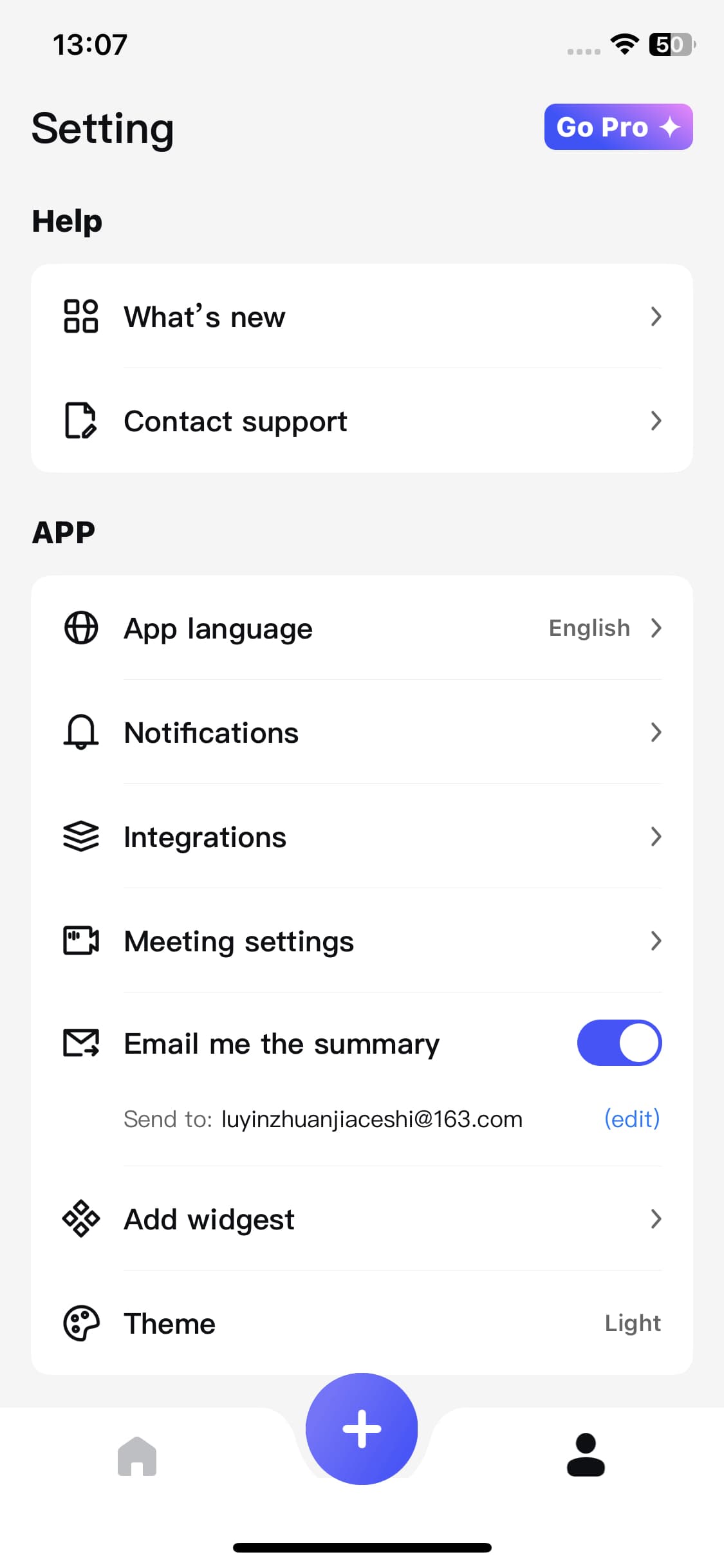
Step 1: Open Settings → Integrations
From the HiNoter home screen, tap the Settings icon.
Go to Integrations, then select Notion.
Step 2: Connect Your Notion Account
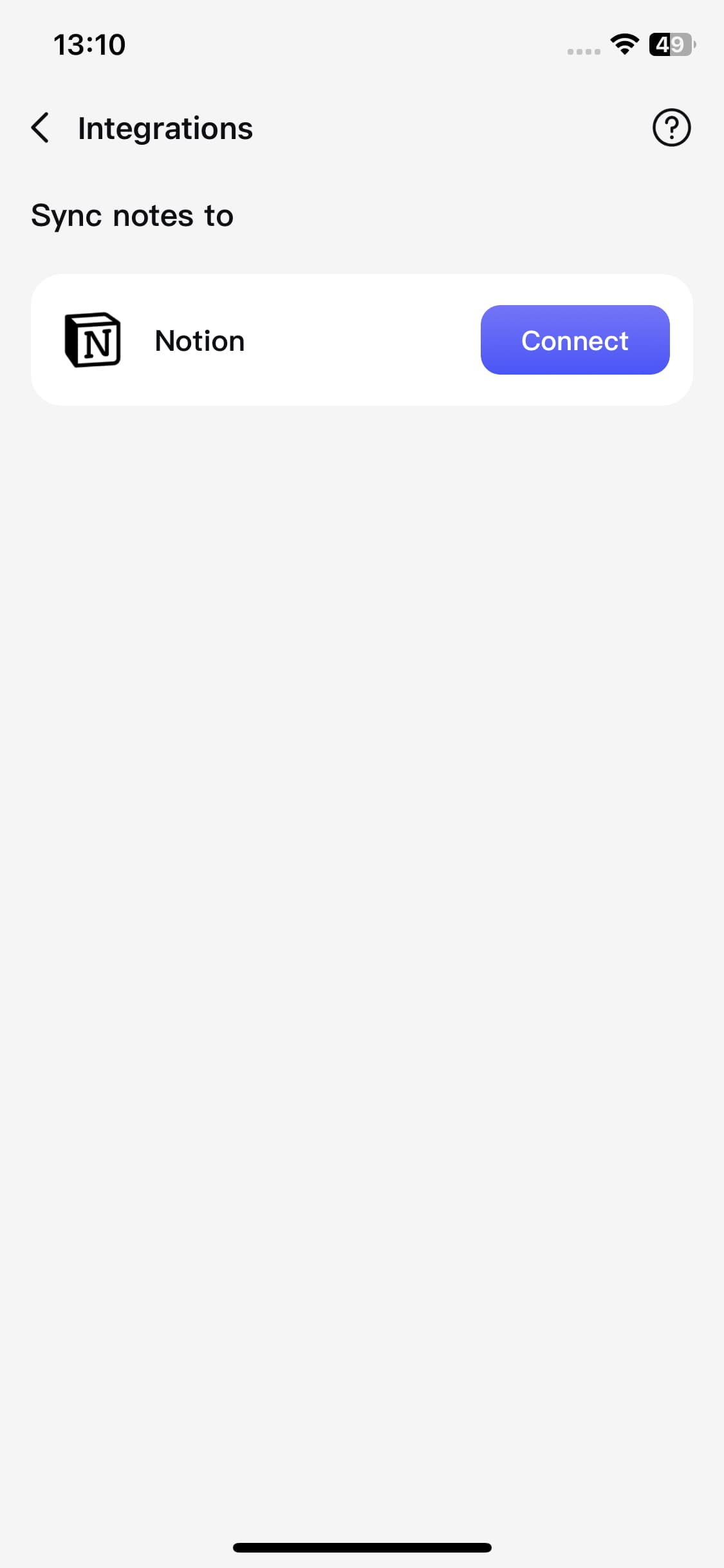
Tap the Connect button to start the integration process.
Step 3: Grant Permission in Notion
You’ll be redirected to the official Notion authorization page.
Log in if needed, then click Allow Access to let HiNoter send notes to your chosen Notion workspace.
Step 4: Automatic Sync Starts Immediately
Once permission is granted, HiNoter will automatically sync all new notes and summaries to the Notion page you selected during authorization.
No need to manually export — everything you create in HiNoter will appear in Notion automatically.
🎉 You're all set!
Your Notion integration is now active.
Every new summary or note generated in HiNoter will be instantly synced to your Notion workspace.