HiNoter can automatically track your meetings, join calls on your behalf, and send helpful reminders — all by linking your calendar.
Follow the steps below to get set up:
Step 1: Open the Calendar Tab
From the HiNoter home screen, switch to the Calendar tab at the top.
Step 2: Choose a Calendar to Connect
Tap Link Calendar, then select the service you want to connect:
- Google Calendar
- Microsoft Calendar
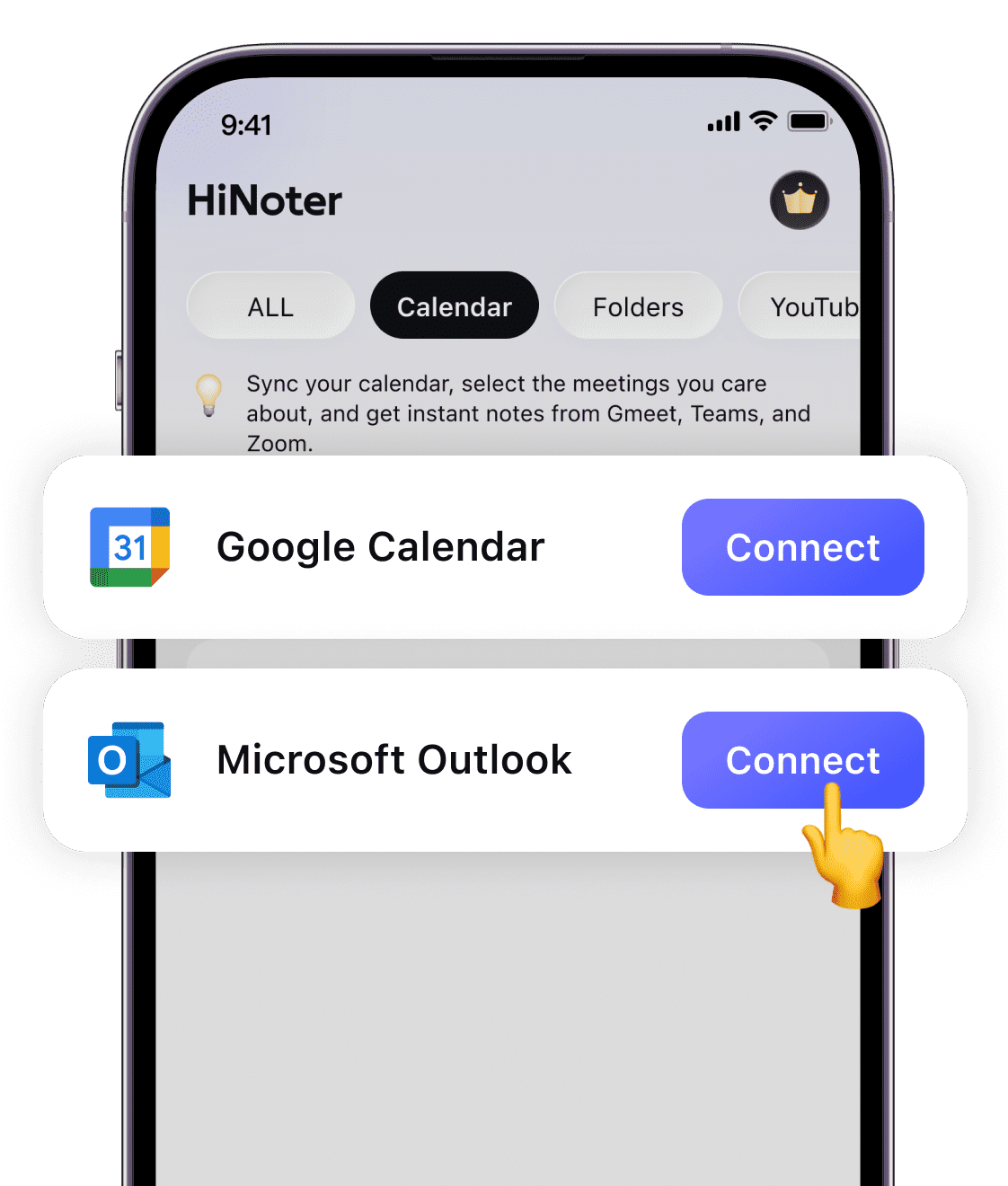
Step 3: Grant Permission You’ll be redirected to authorize access.
Tap Allow so HiNoter can read your events and sync your upcoming meetings.
HiNoter only accesses your schedule to help with reminders and meeting notes — your data is always safe.
Step 4: Calendar Sync Begins Automatically
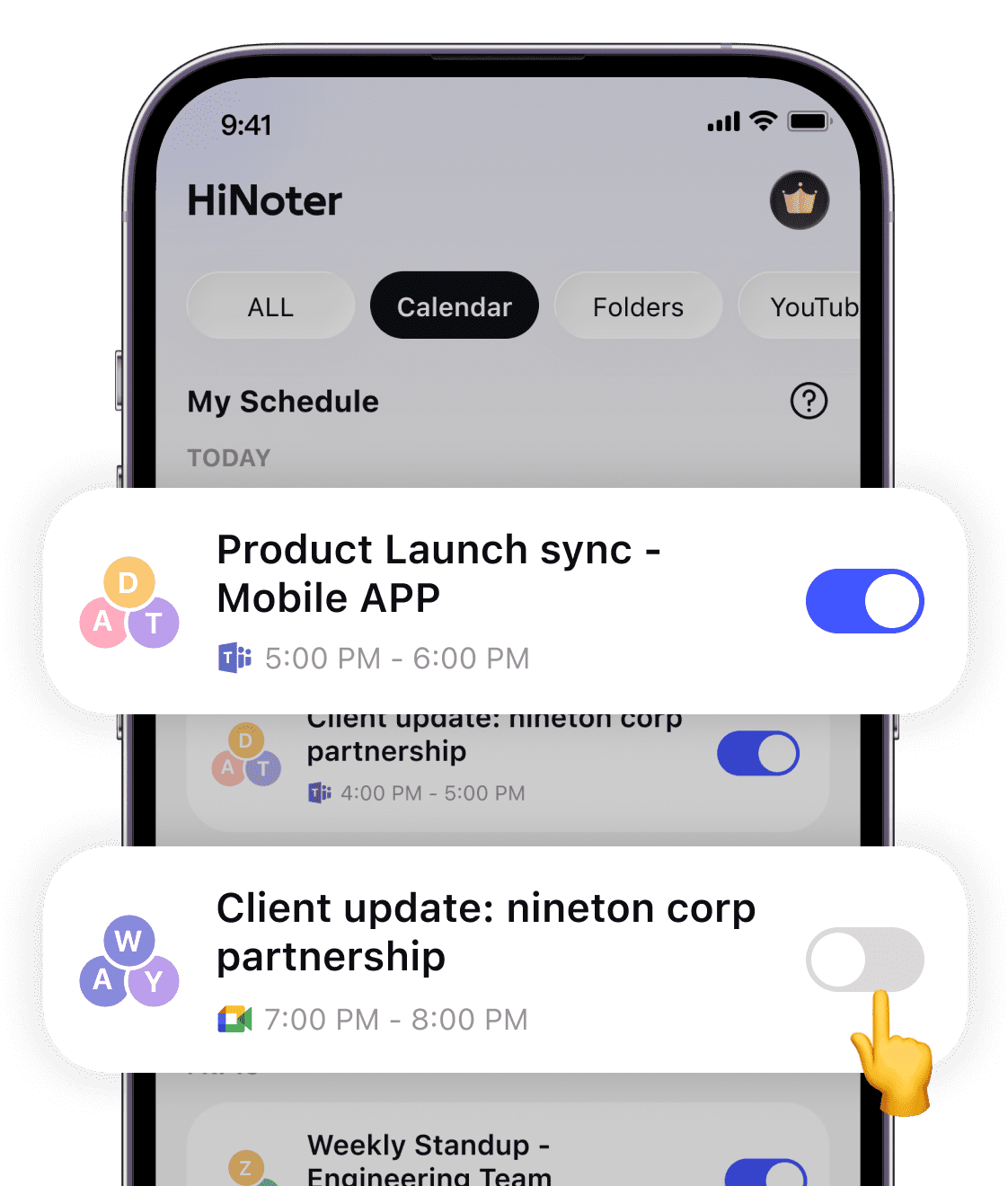
Once permission is granted, HiNoter will automatically sync all upcoming events from your linked calendar. Your meetings will now appear in the Calendar tab.
You can choose whether you want the HiNoter bot to join the meetings and take notes on your behalf.
🎤 What Happens After You Link Your Calendar
✨ Smart Meeting Assistant
For each synced meeting, you can choose whether the HiNoter bot should join the meeting and take notes for you.
⏰ Pre-Meeting Reminders
Enable a pre-meeting reminder so HiNoter notifies you before your call starts.
📧 Post-Meeting Email Sharing
After the meeting, you can choose to send the summary to:
- Yourself
- Your team
- Everyone who attended the meeting
HiNoter makes sure every meeting is captured and shared effortlessly.